
Help CenterBusiness & Salon Setup

Business & Salon Setup

Configure your business profile, locations, team roles, and settings so Evernaro matches your operations.

5 min read

Business profile

Business profile
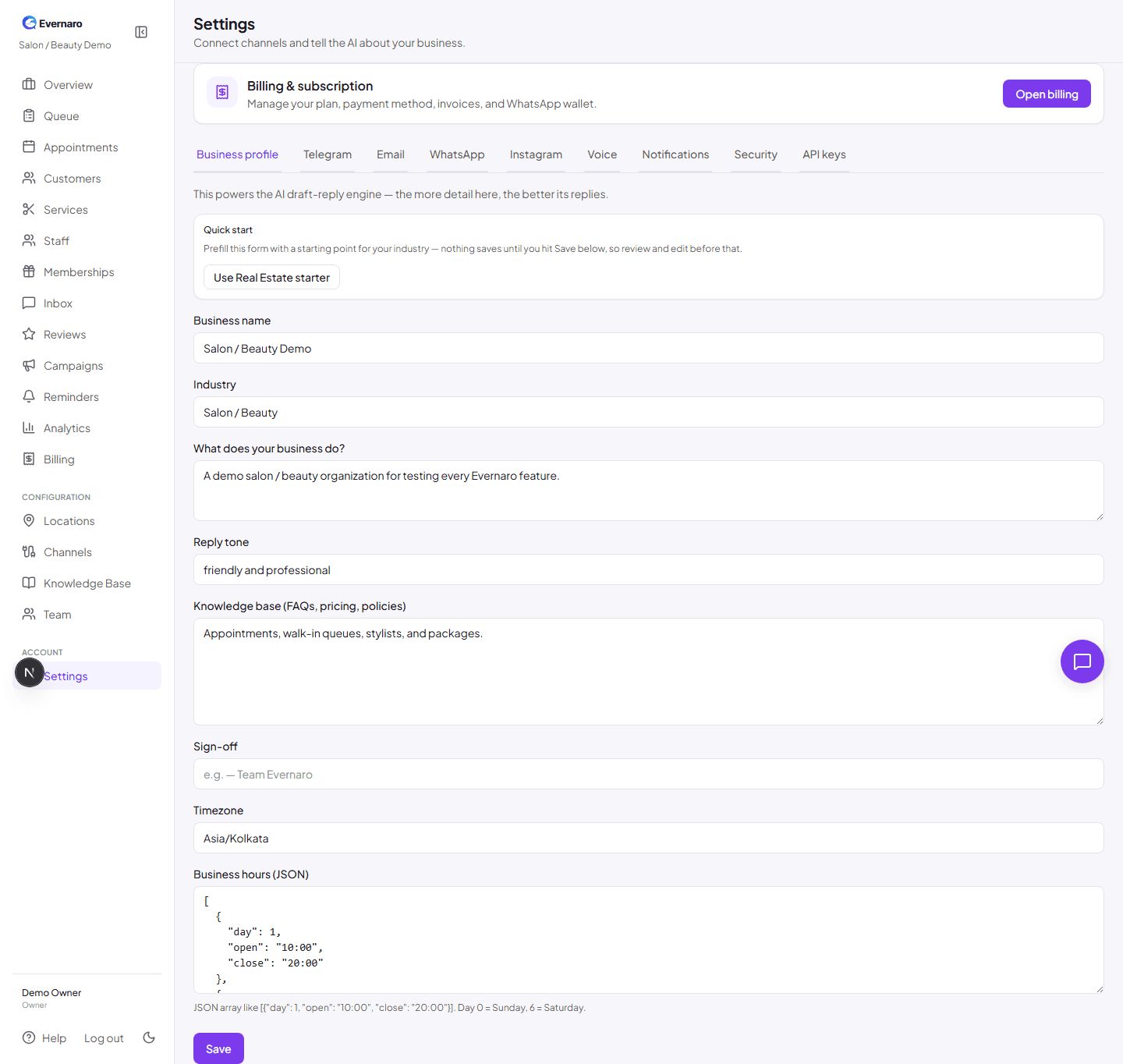
Settings page where you can update business name, address, contact details, and tone.

Your business profile is used in AI drafts, customer-facing messages, and the public booking page. Update it from Settings in the dashboard sidebar.

Important fields:

  • Business name: Shown to customers and used in AI-generated replies.
  • Industry: Decides which dashboard modules and terminology are available.
  • Description: Helps the AI understand what your business does.
  • Address / phone / website: Used in customer-facing pages and messages.
  • Tone: Friendly, professional, or formal — guides AI drafts and reminders.
  • Working hours / timezone: Used for appointment slots and reminder timing.
  • Knowledge base: Add policies, pricing, FAQs, and services so the AI can draft accurate replies.
Locations

If you run multiple branches or service points, add them under Locations. Each location can have its own staff, queue, and appointment calendar.

  1. Go to Locations in the sidebar.
  2. Click Add location.
  3. Enter the location name, address, and phone.
  4. Switch between locations from the dropdown at the top of the sidebar.

Team and roles

Team and roles
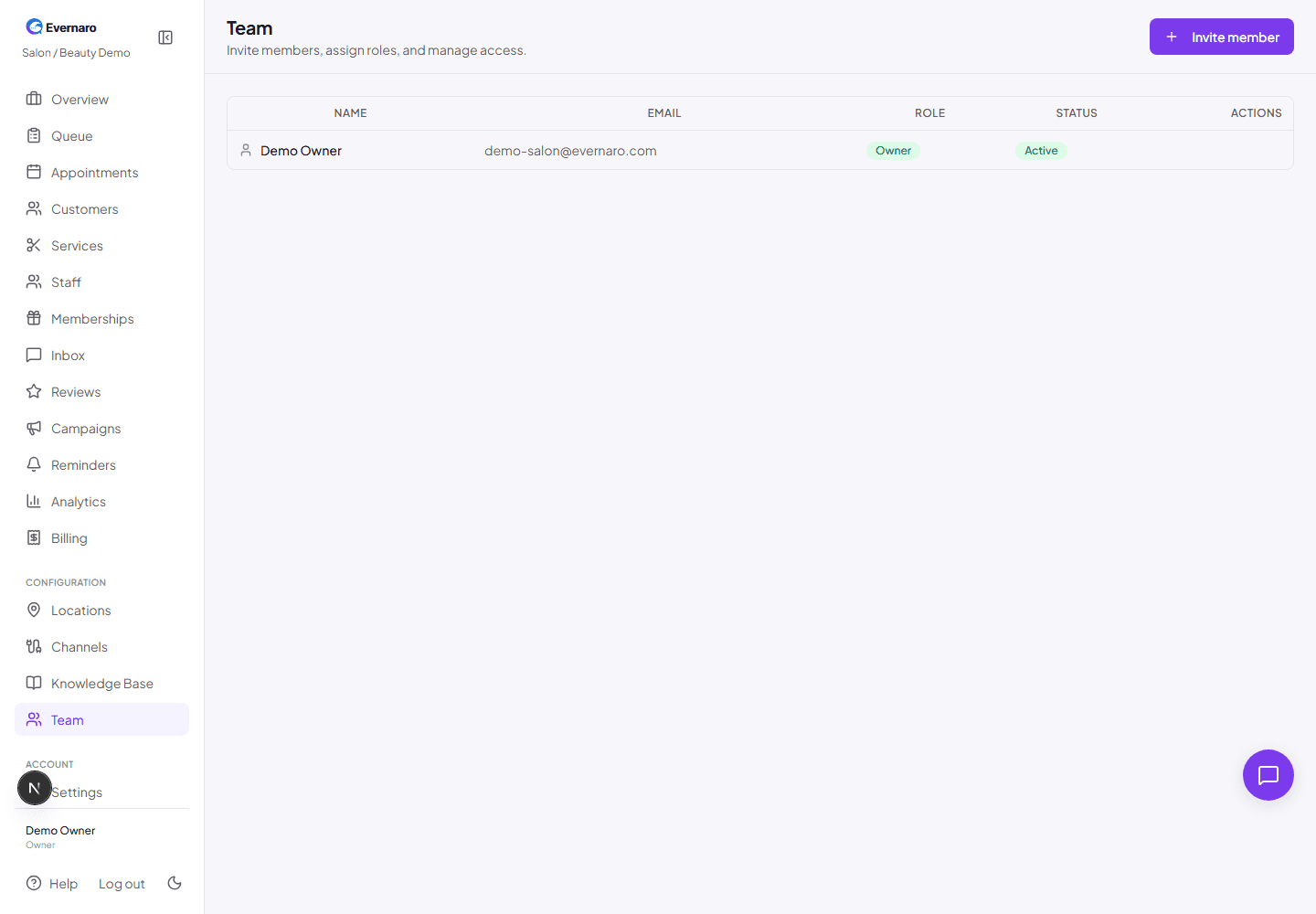
Team page lets you invite staff and assign roles with different permissions.

Invite your team from Team in the sidebar. Evernaro has four roles:

  • Owner: Full access, including billing and team management.
  • Admin: Can manage most settings, services, customers, and campaigns.
  • Agent: Can reply in the inbox, manage customers, and handle appointments.
  • Viewer: Read-only access to dashboards and reports.

Each invited user receives an email with a temporary password. They must change it after their first login.